> ## Documentation Index
> Fetch the complete documentation index at: https://docs.sarasfinance.com/llms.txt
> Use this file to discover all available pages before exploring further.
# Zoom
> Connect your Zoom account to Saras Agentic AI for automated meeting orchestration.
## 1. Initial Setup
1. Navigate to [https://marketplace.zoom.us](https://marketplace.zoom.us).
2. Click on **Build App** under the **Develop** menu on the top right side.
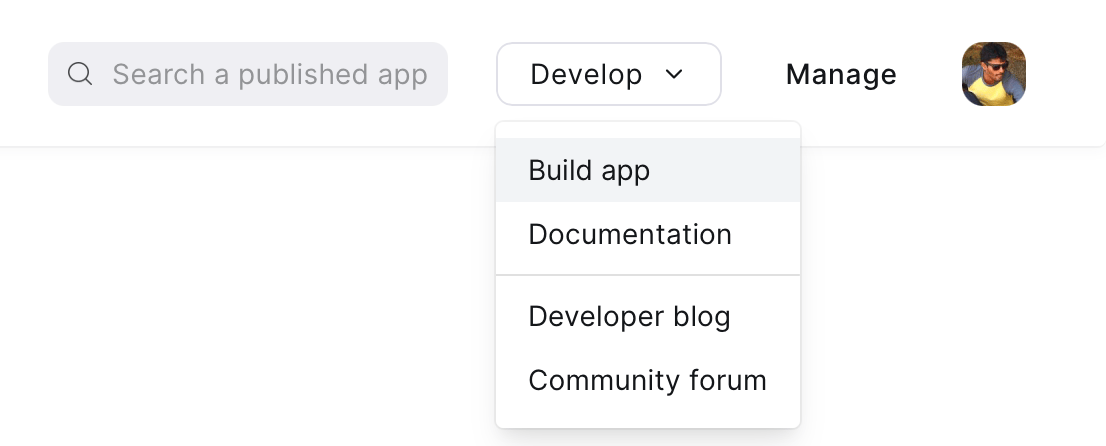 3. From the popup, select **Server to Server OAuth App** and then click **Create**.
4. In the **App name**, type: `Saras AI`.
## 2. Configuration
### App Credentials
1. From the new screen, navigate to **App Credentials**.
3. From the popup, select **Server to Server OAuth App** and then click **Create**.
4. In the **App name**, type: `Saras AI`.
## 2. Configuration
### App Credentials
1. From the new screen, navigate to **App Credentials**.
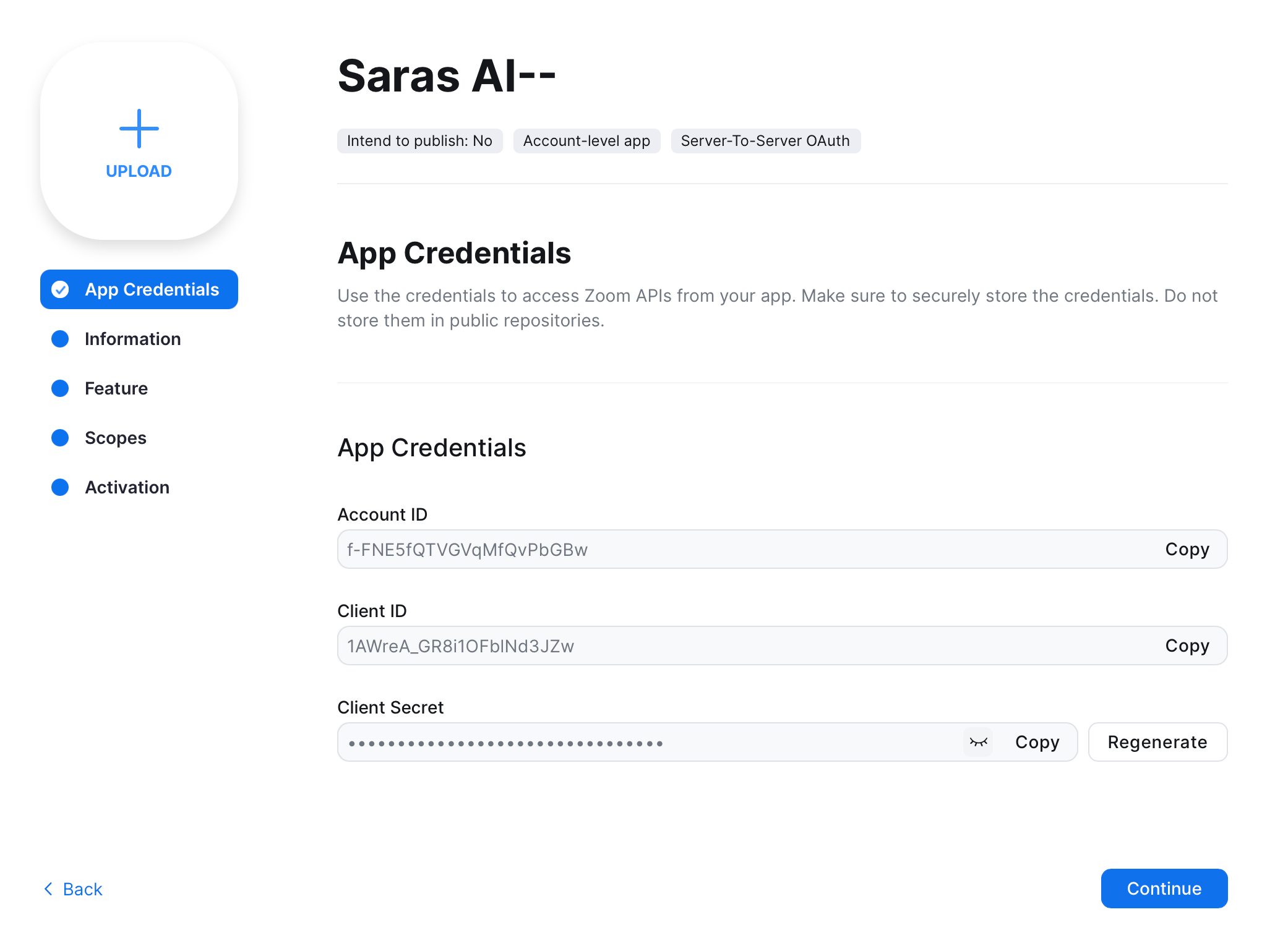 2. **Note:** Copy the **Account ID**, **Client ID**, and **Client Secret**. These will be required for the integration setup in the Saras Portal.
### Information
Fill in the following information as needed:
**Basic Information:**
* **App Name:** Saras AI
* **Short Description:** (Leave blank)
* **Company Name:** Saras Finance
**Developer Contact Information:**
* **Name:** Your Name
* **Email:** [yourEmail@yourdomain.com](mailto:yourEmail@yourdomain.com)
### Features
No configuration is needed in this section at this moment.
### Scopes
1. Click on the **+ Add Scopes** button.
2. **Note:** Copy the **Account ID**, **Client ID**, and **Client Secret**. These will be required for the integration setup in the Saras Portal.
### Information
Fill in the following information as needed:
**Basic Information:**
* **App Name:** Saras AI
* **Short Description:** (Leave blank)
* **Company Name:** Saras Finance
**Developer Contact Information:**
* **Name:** Your Name
* **Email:** [yourEmail@yourdomain.com](mailto:yourEmail@yourdomain.com)
### Features
No configuration is needed in this section at this moment.
### Scopes
1. Click on the **+ Add Scopes** button.
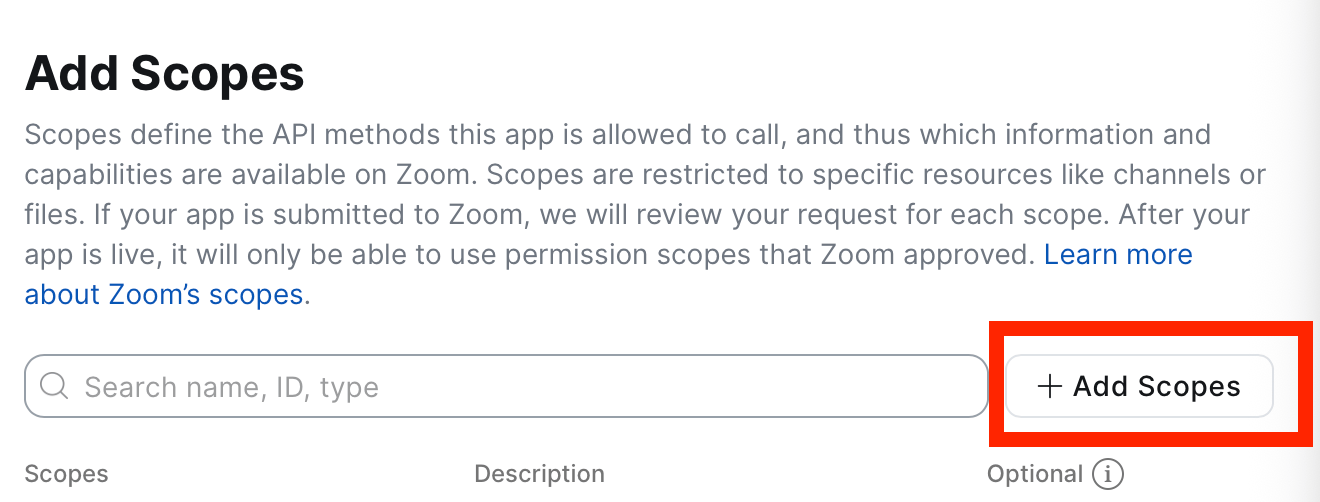 2. Search for and select the following scopes one by one:
* `meeting:write:meeting:admin`
* `meeting:write:meeting:master`
* `cloud_recording:read:registrant:admin`
* `cloud_recording:read:meeting_transcript:admin`
* `user:read:list_users:admin`
3. **Scope Description:** Leave blank.
If you are asking the Saras Support team to configure Zoom for you, kindly share the **Account ID**, **Client ID**, and **Client Secret** with them.
2. Search for and select the following scopes one by one:
* `meeting:write:meeting:admin`
* `meeting:write:meeting:master`
* `cloud_recording:read:registrant:admin`
* `cloud_recording:read:meeting_transcript:admin`
* `user:read:list_users:admin`
3. **Scope Description:** Leave blank.
If you are asking the Saras Support team to configure Zoom for you, kindly share the **Account ID**, **Client ID**, and **Client Secret** with them.